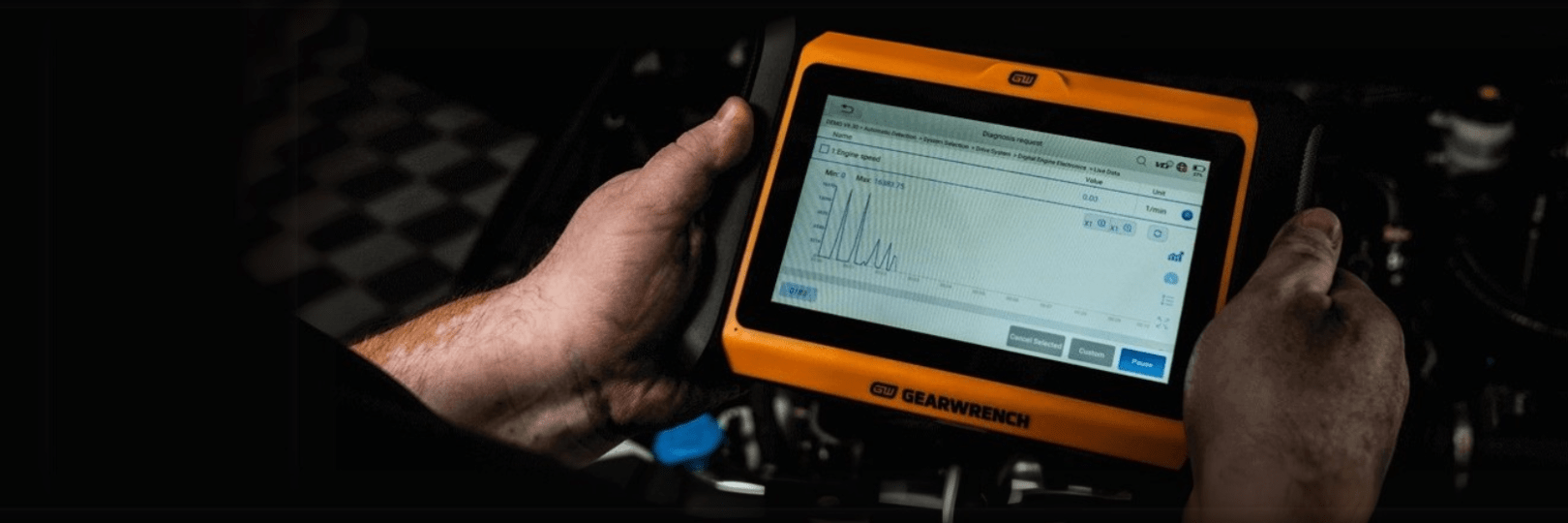
Diagnostics FAQS
The GEARWRENCH Guide to Automotive Scan Tools
- Where can I learn more about the GEARWRENCH Diagnostic tools?
Check out our Featured Tools page for more information. - Do your diagnostic tools come with a warranty?
Our diagnostic tools are covered under a limited 2-year warranty. Please reach out to our dedicated Customer Service team on 02 6021 6666 for support. - Does GEARWRENCH offer a vehicle coverage lookup tool?
Yes, we do! Click here to use our vehicle coverage tool. Are GEARWRENCH diagnostic devices compatible with diesel vehicles?
Yes, GEARWRENCH diagnostic devices are compatible with most diesel vehicles, provided they adhere to the OBDII standard, which has been mandatory for most diesel vehicles manufactured since 2007 in Australia.
However, the specific features and functions available for diesel vehicles may vary depending on the device model and the vehicle's make and model.
For heavy-duty diesel vehicles or commercial trucks, a specialised diagnostic device designed for those applications may be required. We recommend verifying compatibility with your specific vehicle to ensure the device meets your diagnostic needs.
- What causes fault codes to remain uncleared or reappear after being cleared?
When clearing codes, please consider the specific circumstances related to the fault. Typically, there are two types of codes: sporadic codes and actual codes.
Sporadic Codes: These codes usually occur when a component functions irregularly at certain points, possibly due to factors such as electromagnetic interference, vibration, or poor wiring contact. These codes can usually be cleared directly.
Actual Codes: These codes occur when components have genuinely failed. Before clearing these codes, ensure that you have addressed the underlying issue. If the fault lights reappear after code clearance, it indicates that the faults have not been addressed. - What causes the fault light to illuminate during diagnosis?
During diagnosis, certain Electronic Control Units (ECUs) enter diagnostic mode, causing the corresponding fault light to activate. This light will automatically turn off once the diagnostic process is complete. This occurrence is normal, so there is no need to worry. - Why aren’t there any lights illuminated on my dashboard, yet my GEARWRENCH scanner has detected the presence of DTC codes?
Not all DTC codes will activate the fault lights on the dashboard. The manufacturer determines which faults will trigger the light and which ones won’t. The Electronic Control Unit (ECU) might not have fully determined if this constitutes a fault. Electromagnetic interference or vibrations could potentially mislead the ECU. Typically, in such instances, the ECU will ascertain whether it’s an actual fault after undergoing several cycles of operation. - Are owner's manuals for the GEARWRENCH automotive diagnostic scanners available digitally?
Yes, they are available in our Resource Library under Technical Documents. - Do you have a team that can help with trouble codes?
No, GEARWRENCH sells the scan to diagnose trouble codes and we are not professional mechanics and cannot offer repair advice with trouble codes and live data. The dashboard warning lights alert the driver there is some type of issue with the vehicle. What details should I provide if an error occurs on my GEARWRENCH Diagnostic Tool?
Please email us at diagnosticsupport@gearwrench.com. Please share - Serial number & a screenshot or a video of the error on the device.How frequently should I update the software on my GEARWRENCH diagnostic device?
To ensure optimal performance, we recommend updating your GEARWRENCH diagnostic device whenever a new software update is released. Updates often include new features, expanded vehicle coverage, and important bug fixes, allowing you to maintain the best possible diagnostic experience. The Car manufacturers release the updated software at any given day. We will do our best to get this update as soon as possible.
- Why is the VIN not automatically recognised?
- The vehicle may not support automatic VIN detection, or the server database may not contain the relevant data for this specific vehicle.
- Network connectivity issues could be interfering with the process. Verify the stability of your network connection or try switching to a different Wi-Fi network.
If automatic detection fails, manually input the vehicle model to proceed with the diagnostic process.
GWSMART07AU - 7" Wireless Bi-Directional Diagnostic Tablet
Who is the GWSMART07AU: 7" Wireless Bi-Directional Diagnostic Scanner Tablet best for?
The GWSMART07AU is designed for professional automotive technicians and busy mechanical repair shops who need a full-featured, all-in-one diagnostic tablet. It’s ideal for users who want a tool that combines advanced diagnostics with a dedicated, easy-to-use tablet interface.
With the GWSMART07AU, technicians can:
Perform bi-directional controls and active tests across a wide range of systems
Access comprehensive vehicle coverage and live data for faster, more accurate diagnostics
Use a 7-inch wireless tablet for maximum mobility and hands-on convenience in the shop
Receive free 3-year software updates, keeping the tool current with new vehicles
Streamline workflow with a professional, dedicated tablet experience designed for daily workshop use
Unlike simpler code readers or mobile-only tools, the GWSMART07AU delivers full professional diagnostic capability in a compact, dedicated tablet built for efficiency and reliability in a busy automotive environment.
What operating system does the GWSMART07AU use?
The GWSMART07AU operates on a customised version of the Android OS tailored for diagnostic functionality.
- Does the GWSMART07AU support the vehicle I'm working on?
GWSMART07AU supports most vehicles that are compatible with OBDII. If you are unsure of the protocol for your vehicle, contact diagnosticsupport@gearwrench.com for help. Is the GWSMART07AU compatible with motorcycles such as Honda, Kawasaki, Yamaha, Triumph, BMW, Ducati, or Harley Davidson?
No, the GWSMART07 is designed primarily for diagnosing automotive vehicles that comply with OBDII standards. Most motorcycles use different diagnostic protocols that are not supported by the GWSMART07AU.
Is the GWSMART07AU compatible with heavy-duty vehicles such as trucks and buses?
No, the GWSMART07AU is designed for light-duty passenger vehicles that comply with OBDII standards. Heavy-duty trucks and commercial vehicles typically use different diagnostic protocols, which are not supported by the GWSMART07AU.
Is the GWSMART07AU compatible with Tesla vehicles?
No, the GWSMART07AU is not designed to work with Tesla vehicles. Tesla uses proprietary diagnostic systems and protocols that are not supported by the GWSMART07AU.
- How do I print the diagnostic reports?
GWSMART07AU supports third-party print drivers. To install the necessary print driver, use the tablet’s built-in browser to download it, then configure your printer through the OS settings. Once setup is completed, you’ll be able to print your reports. - Why can’t I activate my device?
Check the GEARWRENCH Product Identification Information Card for the activation code and ensure that you are entering the correct code when activating the GWSMART07AU device. Verify that you are using the correct S/N, which should be in full uppercase with no spaces. Once verified, try activating it again. Where can I find a copy of the owner's manual for the GWSMART07AU?
Digital copies of the GWSMART07AU owner's manual and quick start guide are available in our Resource Library under Technical Documents.Is there a fee for software updates?
Software updates are free for the first 3 years and then USD $150/year after the 3rd year. Until 31 Dec 2026, you get 4 years of free software updates instead of 3 years.
GWSMARTBT - Professional Bi-Directional Diagnostic Scan Tool
Who is the GWSMARTBT: Professional Bi-Directional Diagnostic Scan Tool for?
The GWSMARTBT is built for professional automotive technicians and advanced mechanic workshop users who want professional-grade capability without having to invest in a tablet system. These users want to leverage their existing iOS or Android device as the interface for a flexible, mobile diagnostic solution. With the GWSMARTBT, users can:
Perform bi-directional controls and active tests to quickly diagnose and validate repairs
Access live data and advanced system coverage across all major vehicle makes and models
Stay current with free lifetime software updates, ensuring the tool evolves with new vehicles
Work efficiently in the workshop or on the go without carrying extra hardware
Unlike basic code readers or enthusiast-level tools, the GWSMARTBT delivers true professional diagnostic power in a compact, user-friendly format.
- Does GWSMARTBT support the vehicle I am working on?
GWSMARTBT supports most vehicles which is compatible with OBDII. If you are unsure of the protocol for your car, please contact diagnosticsupport@gearwrench.com for help. - How do I connect the GWSMARTBT device?
Power on the device by connecting it to the OBDII port. Next, go to the Bluetooth settings on your phone and pair the device (its name should match the S/N). Once paired, the light will change from red to green. - Why can’t I activate the GWSMARTBT device?
Check the GEARWRENCH Product Identification Information Card for the activation code and ensure that you are entering the correct code when activating the GWSMARTBT device. Verify that you are using the correct S/N, which should be in full uppercase with no spaces. Once verified, try activating it again. - Is the owner's manual for the GWSMARTBT available?
Yes, you can find the owner's manuals for the GWSMARTBT in our Resources Library under Technical Documents.
English
Spanish
French Where can I find the GWSMARTBT app?
You can find the GWSMARTBT app on the Apple Store or Google Play Store. GWSMARTBT is compatible with both Android and iOS devices.What is the Bluetooth range of the GEARWRENCH GWSMARTBT?
The bluetooth connection range is approximately 10 metres under optimal conditions
GWSCAN - Everyday Diagnostic Bluetooth OBDII Tester
Who is the GWSCAN Everyday Diagnostic Tool for?
The GWSCAN Everyday Diagnostic Tool is designed for the automotive enthusiast, hands-on car owner, and everyday driver who wants an easy, reliable way to understand what’s going on with their vehicle. It’s perfect for anyone who wants to:
Quickly identify check engine light codes
Perform basic diagnostics without a trip to a mechanic
Validate that what the mechanic is telling them is accurate, so they feel more confident when taking their vehicle in for service
Save time and money by having clear, easy-to-read results
Unlike overly complicated scan tools, the GWSCAN keeps things simple and user-friendly, making it ideal for home mechanics, hobbyists, and drivers who want peace of mind when it comes to their vehicle’s health.
- Does GWSCAN support the vehicle I am working on?
GWSCAN supports most vehicles which is compatible with OBDII. If you are unsure of the protocol for your car, please contact diagnosticsupport@gearwrench.com for help. - Can the GWSCAN be plugged into my vehicle all of the time?
Yes, under typical daily driving circumstances, GWSCAN does not result in battery depletion or damage. It utilizes low-power Bluetooth technology, which enters a sleep mode automatically after the vehicle has been turned off for 3 minutes. Upon the vehicle being restarted, GWSCAN will reactivate. - Why can’t I connect to my GWSCAN?
First, open the "GWSCAN" app on your smartphone or tablet and let the app connect automatically to the device, eliminating the need to search for it again in your phone or tablet settings. Please make sure the "GWSCAN" app is granted permission to enable Bluetooth, access location information, and access device storage. Next, make sure that the GWSCAN is attached firmly to the OBDII port. And lastly, ensure that you have installed the latest version of the GWSCAN app, available from either the Apple App Store or Google Play Store. - Why can't I communicate with the vehicle?
Ensure that the engine is turned on and idling. Verify that the brand and model registered within the GWSCAN app match the vehicle type to which GWSCAN is plugged in. - Where can I find a digital copy of the owner's manual for the GWSCAN?
Copies of our owner's manuals are available in our Resource Library.
English
Spanish
French - Where can I find the GWSCAN app?
The GWSCAN app can be found on Apple Store and Google Play Store.